
![[HERO] No More Guessing Games: Meet the New Fido Guide](https://cdn.marblism.com/46WyWK7JugF.webp)
You know that moment when you're building a page and you need to pick the perfect Content Builder block, but you can't quite remember what "Call to Action – Simple Centered" looks like versus "Call to Action – Split with Image"? So you add it, save the draft, click preview, squint at it, realize it's not quite right, go back, delete it, try another one, rinse and repeat until your coffee is cold and your patience is gone?
Yeah, we've been there too. And honestly? It drove us a little nuts.
Content editors shouldn't have to play memory games or do the preview shuffle just to build a page. You're trying to get work done, not solve a puzzle. That's why we built something we're calling the Fido Guide — and it’s about to make your editing life a whole lot easier.
The Problem: Flying Blind with Content Blocks
Here's the thing about building websites with a modular, component-based system (which, let's be real, is the smart way to build websites): you end up with dozens of beautiful, pre-designed blocks. Testimonial carousels, hero sections, FAQ accordions, logo clouds – the works.
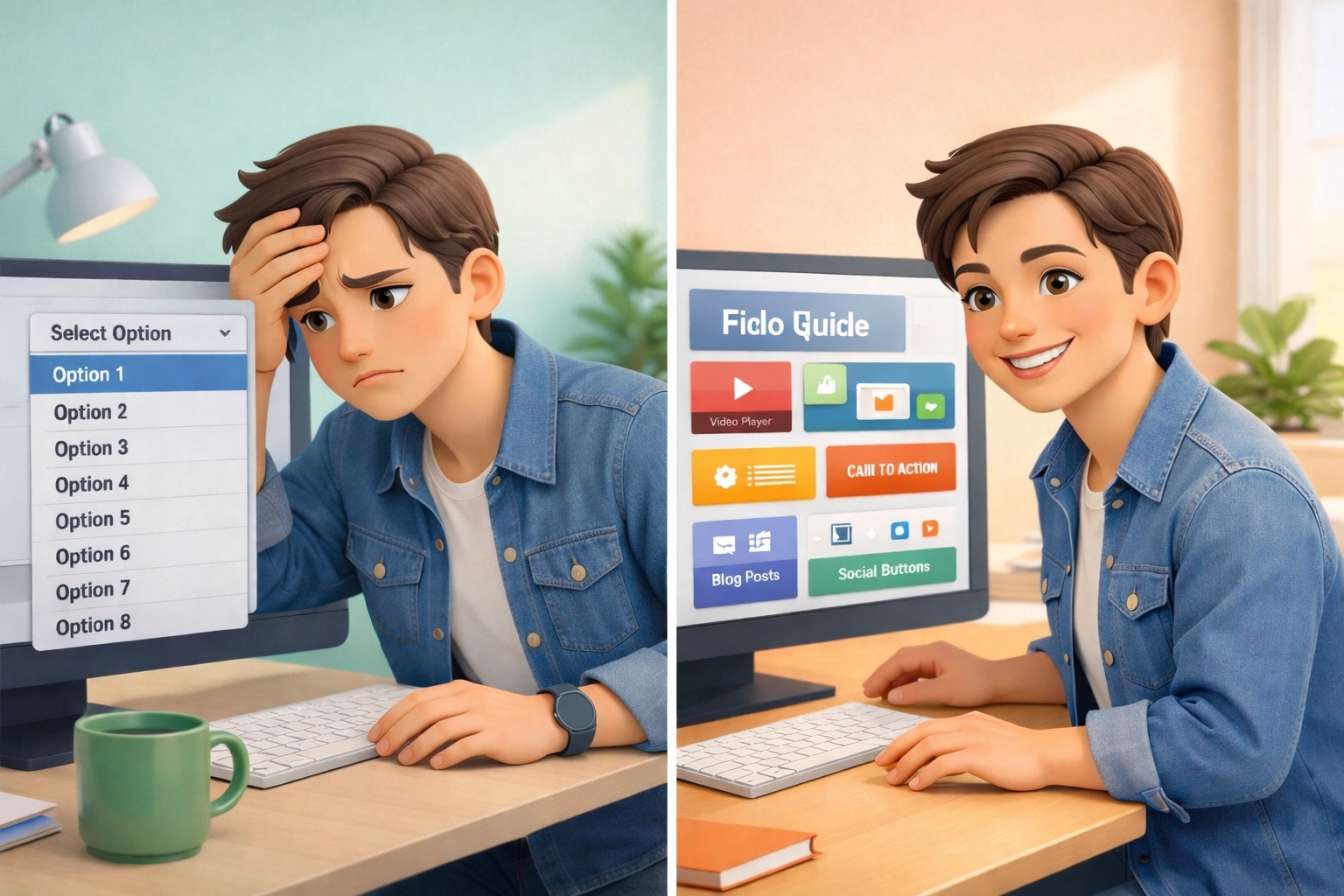
But when you're in the trenches editing a page, all you see is a dropdown menu full of technical names. No pictures. No previews. Just "Testimonials – Card Grid" and "Testimonials – Slider" and you're supposed to just... remember which is which?
Marketing teams were constantly asking developers "Hey, what does the three-column stats block look like again?" Editors were creating draft after draft just to see if a component would work for their content. And everyone was wasting time on back-and-forth that could've been spent actually, you know, creating great content.
It felt like we'd built this amazing easy website builder with all these powerful blocks, but then made people navigate it blindfolded. Not cool.
The Solution: Your New Best Friend in the Control Panel
Enter the Fido Guide. Think of it as your personal Content Builder encyclopedia, living right inside your Fido Control Panel.
We added a shiny new "Guide" section to your navigation (you can't miss it – it's got a cute little book icon). Click it, and you'll find two things that are about to become your new favorites:
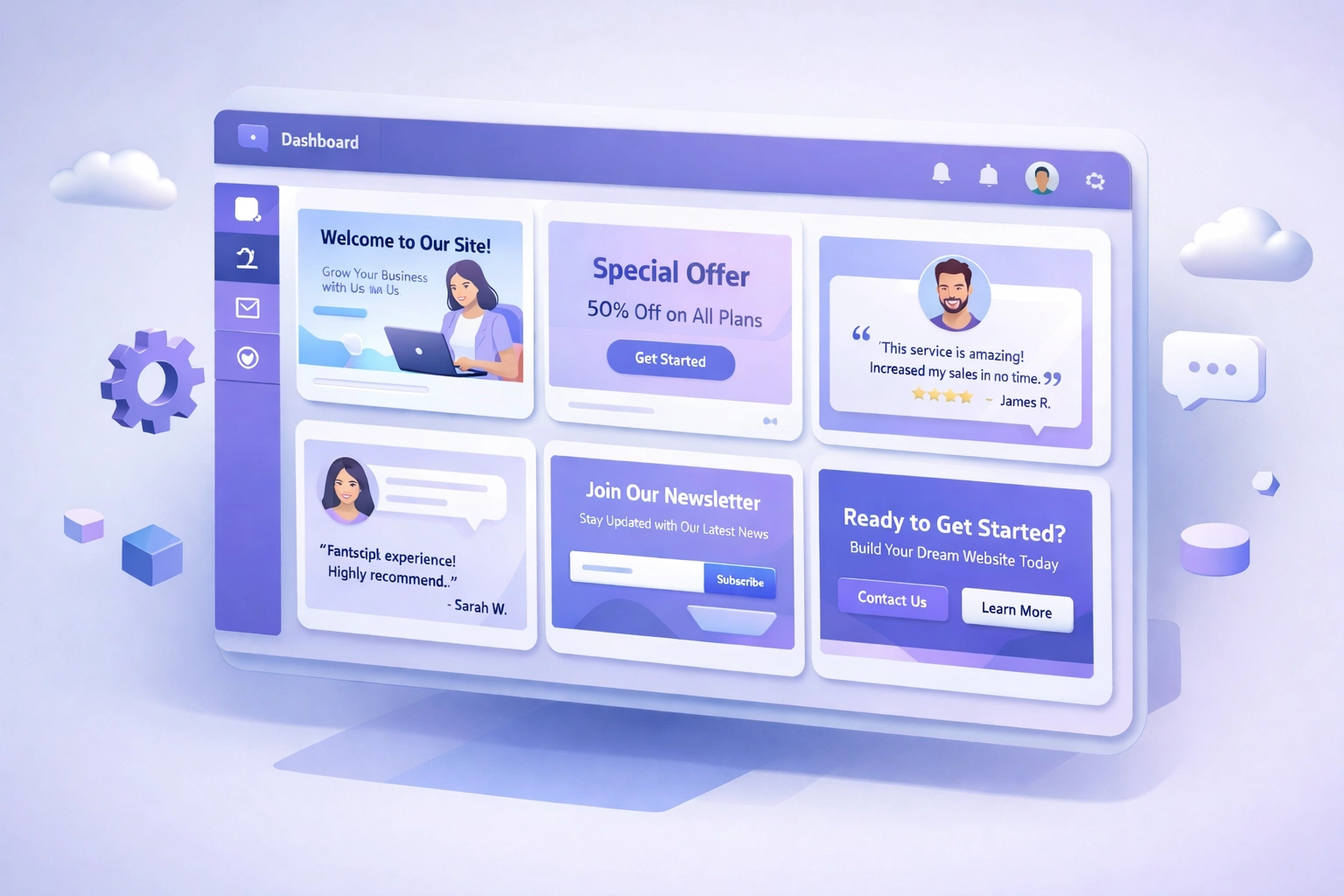
The Content Builder Library: Every single block type you have access to, organized by category, with live previews of every variant. Want to see all your Call to Action options side by side? Done. Need to compare image placement on your testimonial blocks? Easy.
The "Preview Component" Button: While you're editing a page, every Content Builder block now has a little button that opens a modal showing exactly what that specific block will look like with your current settings. No saving. No leaving the page. Just instant gratification.
It's like having a design portfolio and a magic mirror built right into your website platform.
Browsing the Library: Window Shopping for Components
Let's talk about the Content Builder Library first, because it's genuinely fun to use.
When you open it up, you'll see all your blocks organized into sensible categories – General stuff, Image-focused blocks, and specialized ones. On the left sidebar, you get a nice scrolling list of every block type and its variants. Click on one, and boom – you're scrolling to that block's preview section.
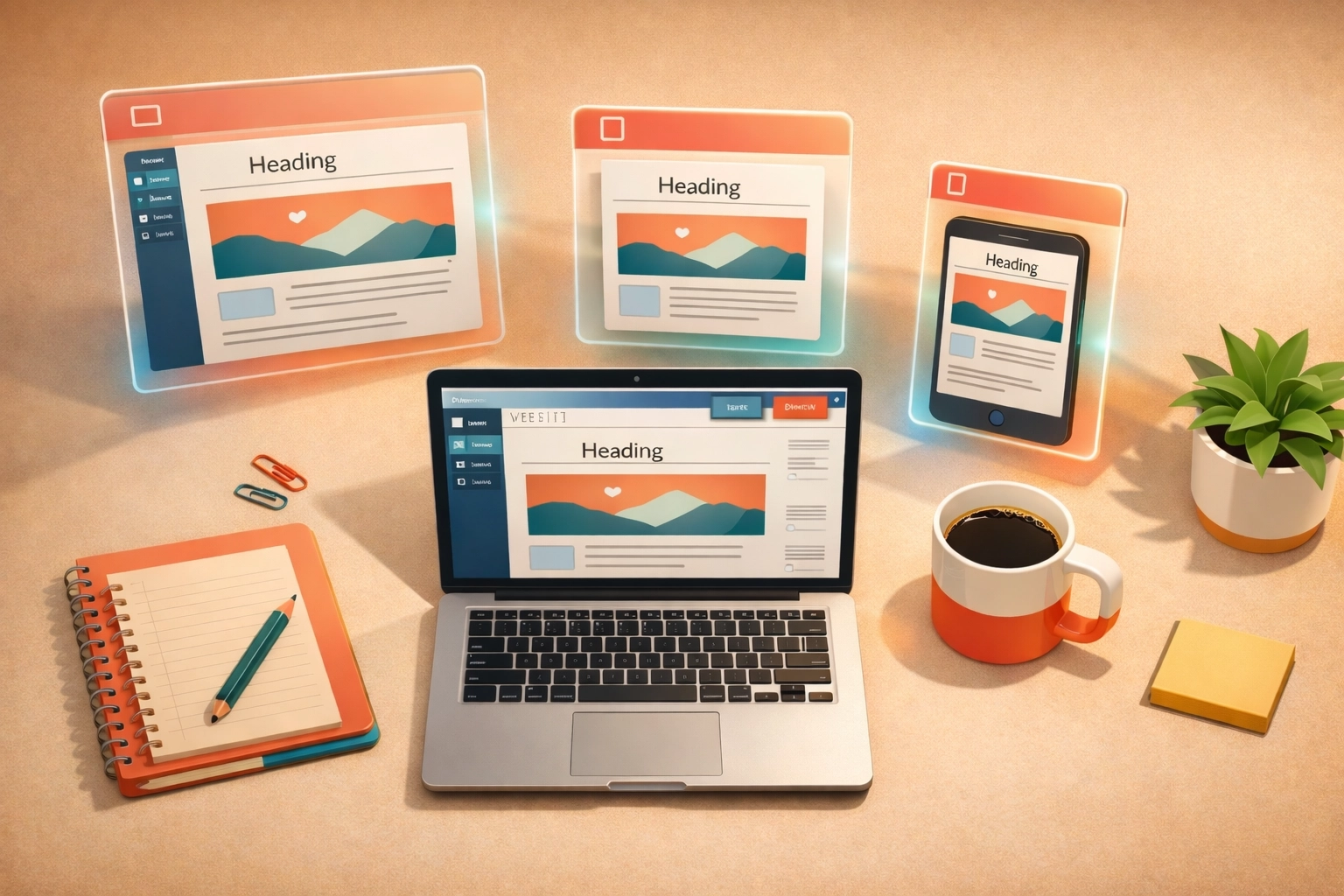
Here's where it gets really clever: each preview is in a resizable iframe. You can literally grab a handle and drag it smaller or wider to see how that block responds at different screen sizes. Desktop? Check. Tablet? Check. Phone? Check. No more wondering if that three-column layout is going to stack nicely on mobile – just resize and see for yourself.
Every preview shows you: - What the block looks like fully styled - Real content when we have it (more on that in a sec) - The exact template path, so you know which variant you're looking at - An "Open in new tab" link if you want to inspect it closer
It's basically component window shopping, and we're not gonna lie – it's pretty satisfying to scroll through.
The Preview Button: Your New Editing Superpower
Okay, but the Content Builder Library is just half the story. The real game-changer is what happens when you're actually editing a page.
See, browsing the library is great for discovery – "Oh, I didn't know we had a split-screen testimonial option!" But when you're mid-edit, you don't want to leave your entry to go check the library. You want to know what this specific block looks like right now with these exact settings.
That's what the "Preview Component" button does.
You're editing your homepage. You add a Call to Action block. You pick the "Split with Image" variant from the dropdown. You fill in your heading and button text. And then – instead of saving, exiting, previewing the whole page, and scrolling to find your block – you just click that little "Preview component" button right there on the block.
Pop! A modal opens showing you exactly what your block will look like, rendered with the variant you selected and the component type setting you chose. If you change the dropdown from "Simple Centered" to "Split with Image," the preview updates to show you the new variant.
No leaving the page. No saving drafts. No coffee breaks while you wait for the preview to load. Just instant visual feedback so you can make confident decisions and keep moving.
This is what we mean when we talk about being a web development platform that actually thinks about the people using it every day.
The Smart Tech Behind the Magic (Don't Worry, We'll Keep It Light)
You don't need to know how the sausage is made to enjoy eating it, but since you asked (or you're curious), here's the quick version of what makes this work:
Everything starts with a single source of truth — a simple YAML config file that maps every block type to its template paths and variants. One file, all the info. When you add a new block variant to your site, you add it to this config, and boom — it shows up in the Fido Guide automatically.
When you're viewing previews, we're actually rendering the real block templates with real data whenever possible. We have a special "components" page where we keep example blocks with real content. If you've got a testimonial block there, the Fido Guide will show you that actual testimonial. It's not a static screenshot — it's the real, living template.
Don't have real content for a block yet? No problem. We built a mock data system that populates templates with placeholder content that looks real enough to give you a sense of the layout and design. Sample headings, fake testimonials, stock stats – whatever the block needs to look like itself.
And those resizable previews? We wrapped everything in iframes that include all your site's styles and scripts, so what you see in the Fido Guide is exactly what you'll get on your live site. The resize handle is just some clever JavaScript that lets you drag the viewport smaller or wider, triggering responsive breakpoints as you go.
The modal on the entry edit page? That's tapping into the same preview system, but it's smart about which variant to show you based on the "component type" dropdown in your block's styles settings. Change the setting, and the preview knows to show you the updated variant.
It's all designed to work with your existing templates and blocks – no need to rebuild anything. Just turn it on and start previewing.
What This Actually Means for Your Team
Let's cut through the features and talk about the real benefit here: confidence and speed.
Your marketing team can now browse the full library of available blocks before they even start writing copy. They can plan their page layout knowing exactly what each component looks like and how it behaves. No more "Can we do X?" emails to the developers – just open the Guide and see if X exists.
Your content editors can make design decisions in real-time without breaking their flow. Should this CTA be centered or split? Let me preview both and decide. Does this testimonial work better as cards or a slider? One click tells me everything I need to know.
Your developers can onboard new team members in minutes instead of hours. "Here's the Guide – it shows you every component we've built. Play around, see what we have, and let me know if you have questions." Done.
And everyone spends less time in that frustrating save-preview-edit-repeat loop and more time actually creating great content and publishing pages.
That's the real win. Not the technical cleverness (though we're pretty proud of that), but the fact that we've removed friction from your daily workflow. We've turned guessing into knowing, and wondering into seeing.
This Is What Platform Means
Look, anybody can give you a drag-and-drop editor and call it a day. Slap some blocks in there, let people move stuff around, ship it. Easy website builder, done.
But we're not interested in "easy" if it means you're still frustrated and wasting time. We're interested in thoughtful. In building tools that make your job genuinely better, not just technically possible.
The Fido Guide is a perfect example of what we mean when we talk about Fido being a web development platform instead of just a website builder. We're thinking about the whole experience — not just "Can you add a testimonial block?" but "How do you confidently choose the right testimonial variant without leaving your editing flow?"
We're building features that grow with you. As your component library expands (and trust us, once you see how easy it is to preview and use blocks, you'll want more), the Guide scales right along with it. Add 50 new block variants? They all show up automatically, organized and ready to preview.
And here's the kicker: this isn't a separate tool you have to pay extra for or a third-party plugin that might break with the next update. It's baked right into your Fido site, part of the platform, maintained and improved by the same team that builds everything else.
That's the communal codebase advantage. When we improve something like the Fido Guide, every Fido site benefits. Your team gets smarter tools, and you didn't have to hire a developer to build it.
Ready to Stop Guessing?
If you're already using Fido, the Fido Guide is waiting for you right now in your Control Panel. Just look for that book icon in your navigation, click it, and start exploring. Trust us — your first time browsing the Content Builder Library or clicking that "Preview component" button, you're going to wonder how you ever edited pages without it.
Not on Fido yet? This is exactly the kind of thoughtful, editor-focused feature we mean when we say we're building a platform that makes web development better. Come check out what we're doing. Your content team will thank you.
Because at the end of the day, nobody should be playing guessing games with their website. You've got pages to build, content to create, and goals to hit. The Fido Guide just got you there faster.
Now go make something beautiful. We'll handle the previews.